This article will walk you through the steps of logging in to the AutoDesk site so that you can access AutoCAD and Revvit applications. These applications are free to use for academic purposes at Park University.
- Go to https://www.autodesk.com
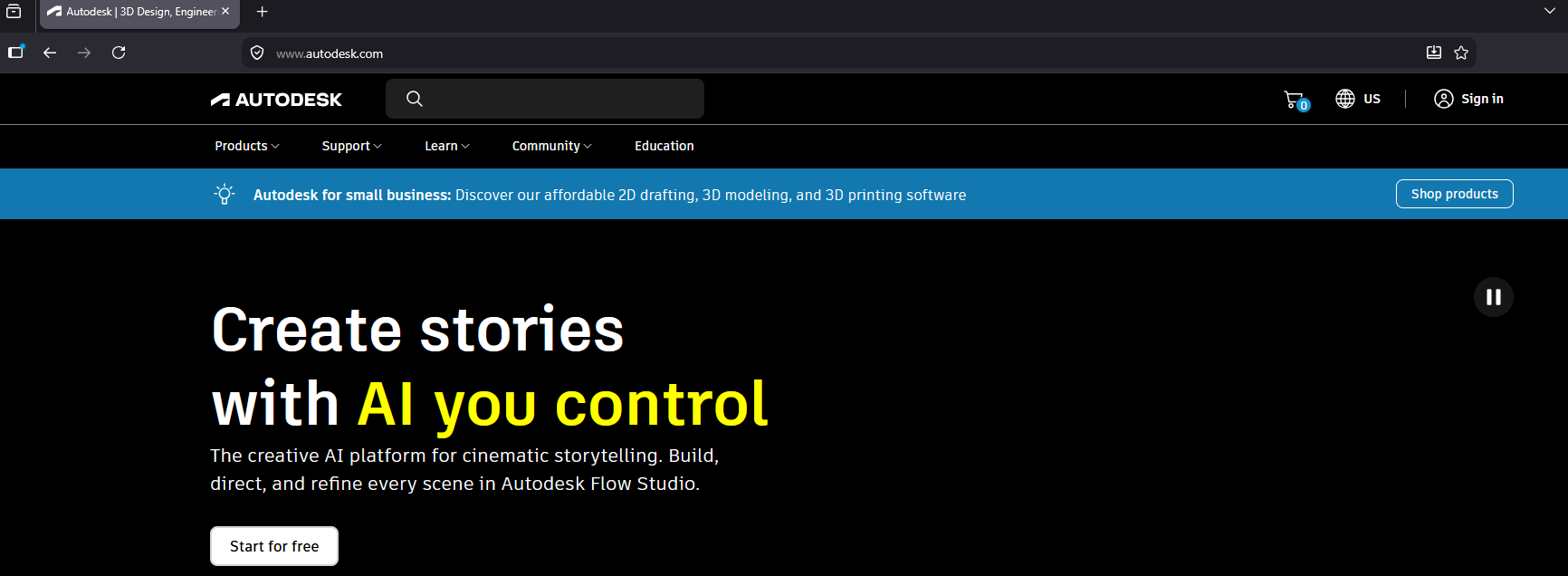
- Click on the Sign In button in the top right corner

- Enter your primary Park University email address on the provided space and click Next (typically firstname.lastname@park.edu or something similar)
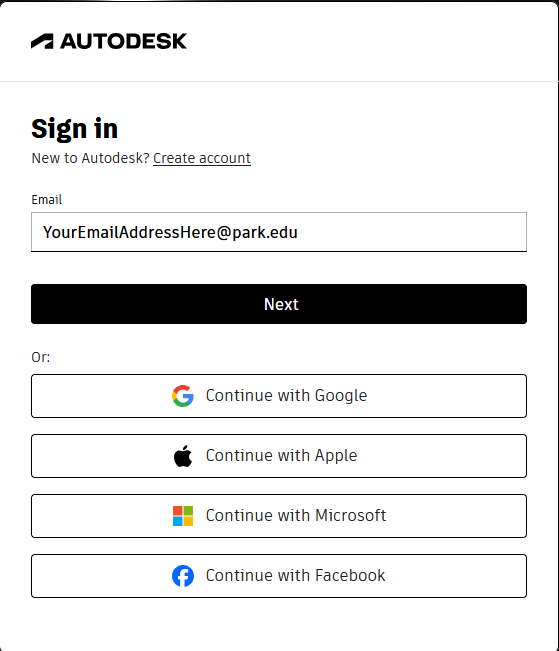
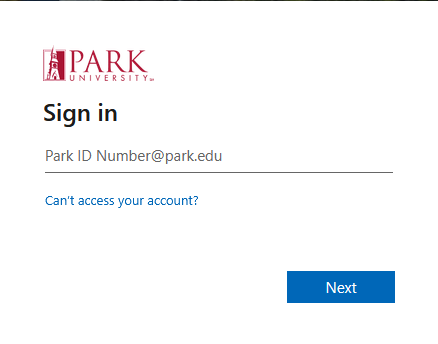
- You should then be redirected to the Park University SSO. Please complete this as normal by using your ID Number (idnumber@park.edu) and Password along with verifying your identity through your chosen MFA methodology.
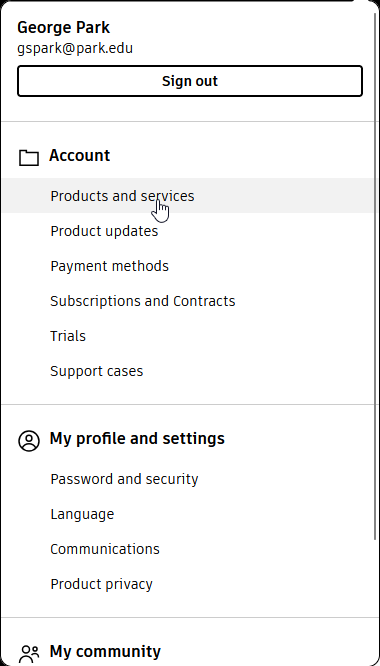
- You should now be returned to the AutoDesk site. In the upper righthand corner you should see your initials, and clicking on this will take you to your profile options. From here you will access your Product and Services
- If this is your first time using the site, you may not have been assigned any product licenses yet, as this cannot be done automatically).
- Please contact your instructor to have the AutoCAD and Revvit licenses applied to you
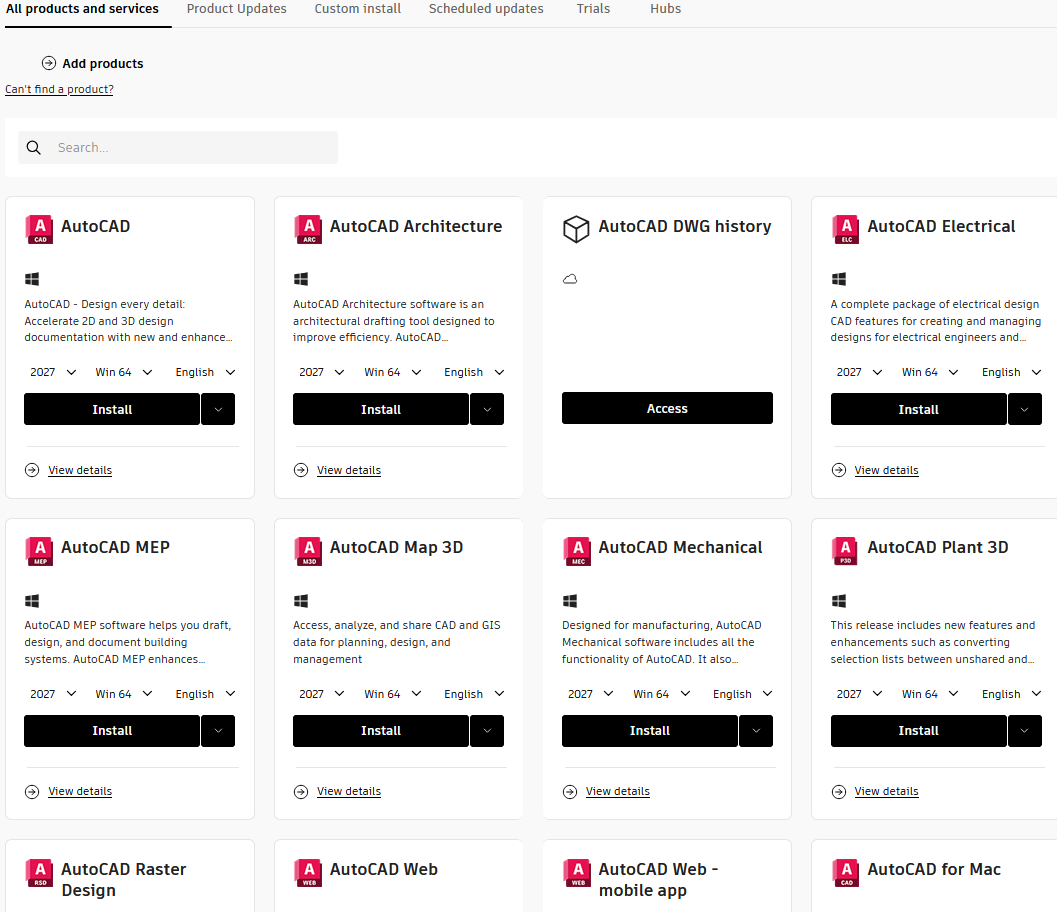
- Clicking on the Products and Services link under your account will take you to the download/install section once your licenses have been assigned.